File manager
Copy, organize and preview files side by side.
Keep two folders open, preview files, search large logs and manage disk space. Included in Community.

Move files with fewer steps.
F3 opens the viewer, F5 copies, and F6 moves. Tab switches panes. Remap the keys in Settings to suit the way you work.
Two panes, many tabs
Each pane keeps its own tabs, breadcrumbs, sort order, and view mode. Lock a tab and it stays on its folder, so the one you keep coming back to cannot be navigated away by accident.
Transfers run in the background
Copies, moves, and deletes go to a queue you can watch, pause, and cancel.
Search by name or contents
Search opens as its own tab, and its results are a pane you can act on.
Browse an iPhone or iPad over USB
Connect a device to browse its media and documents from file-sharing apps in either pane. Included in Community.
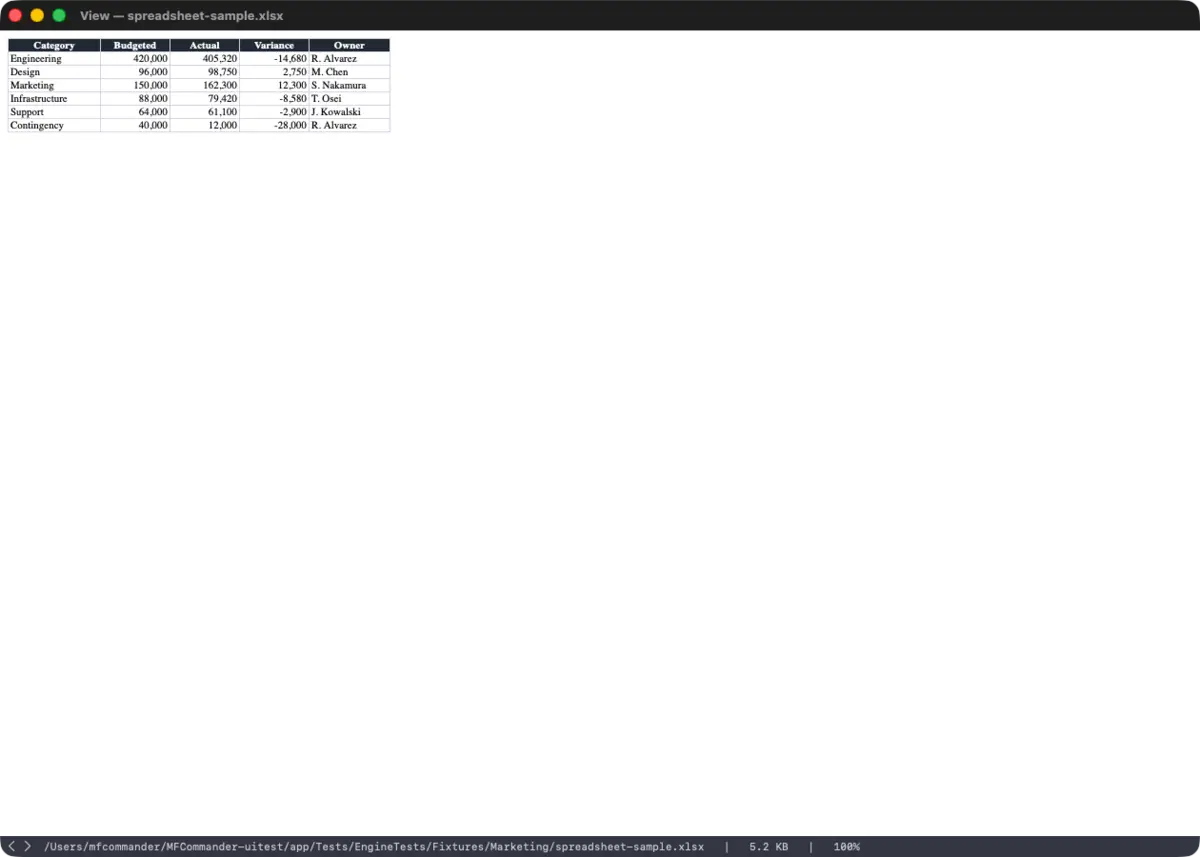
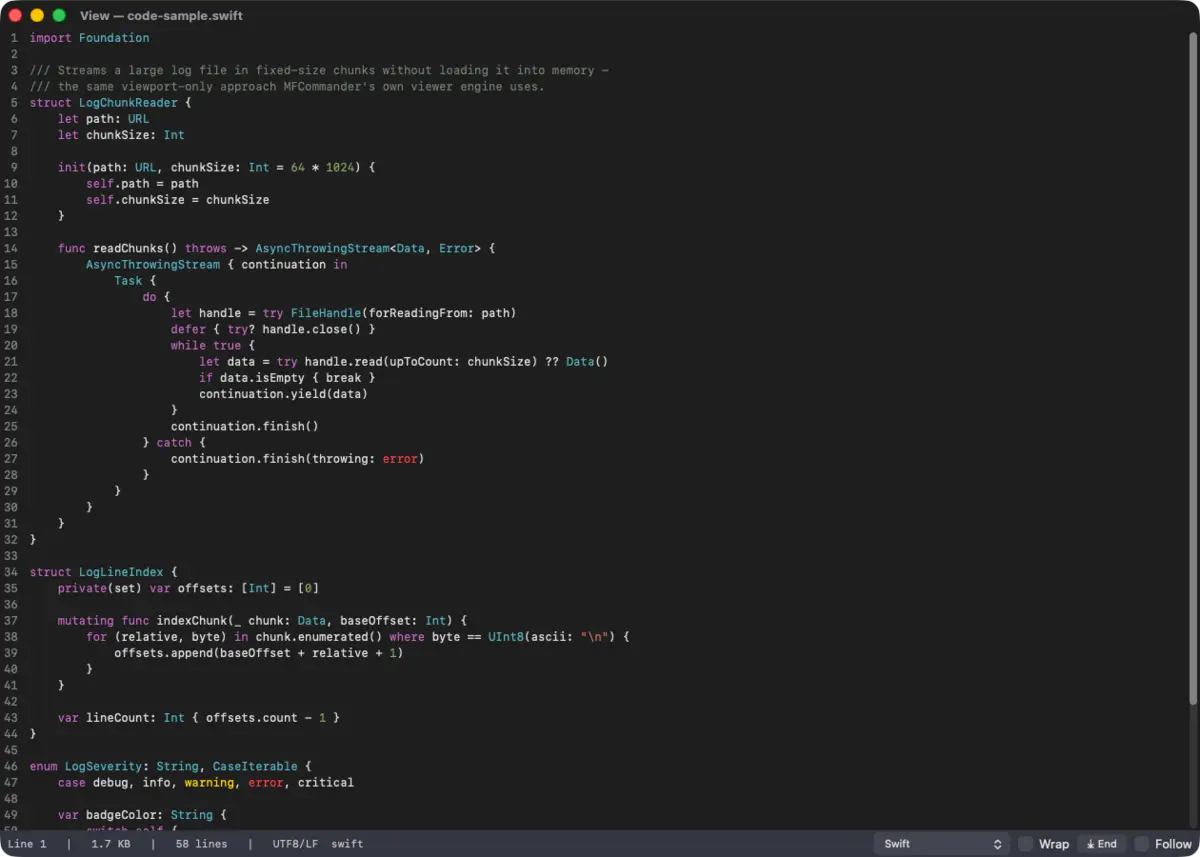
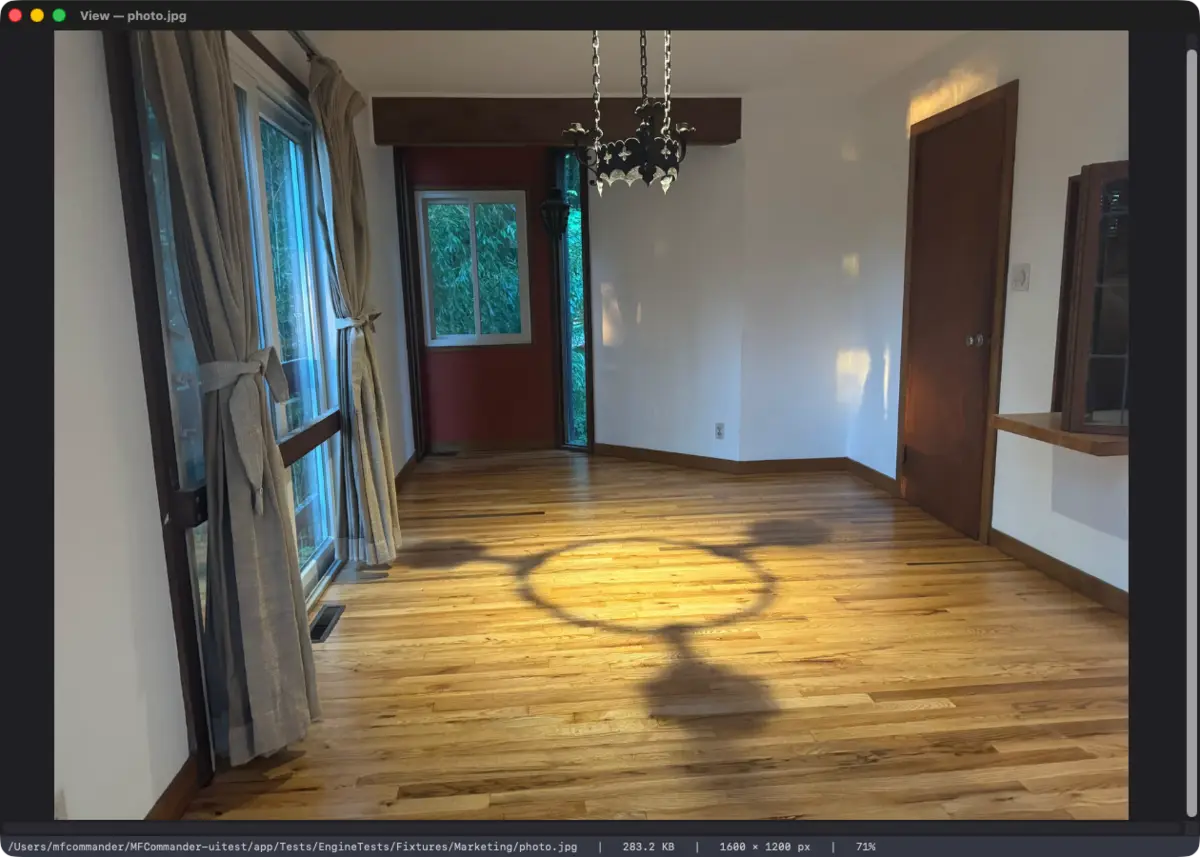
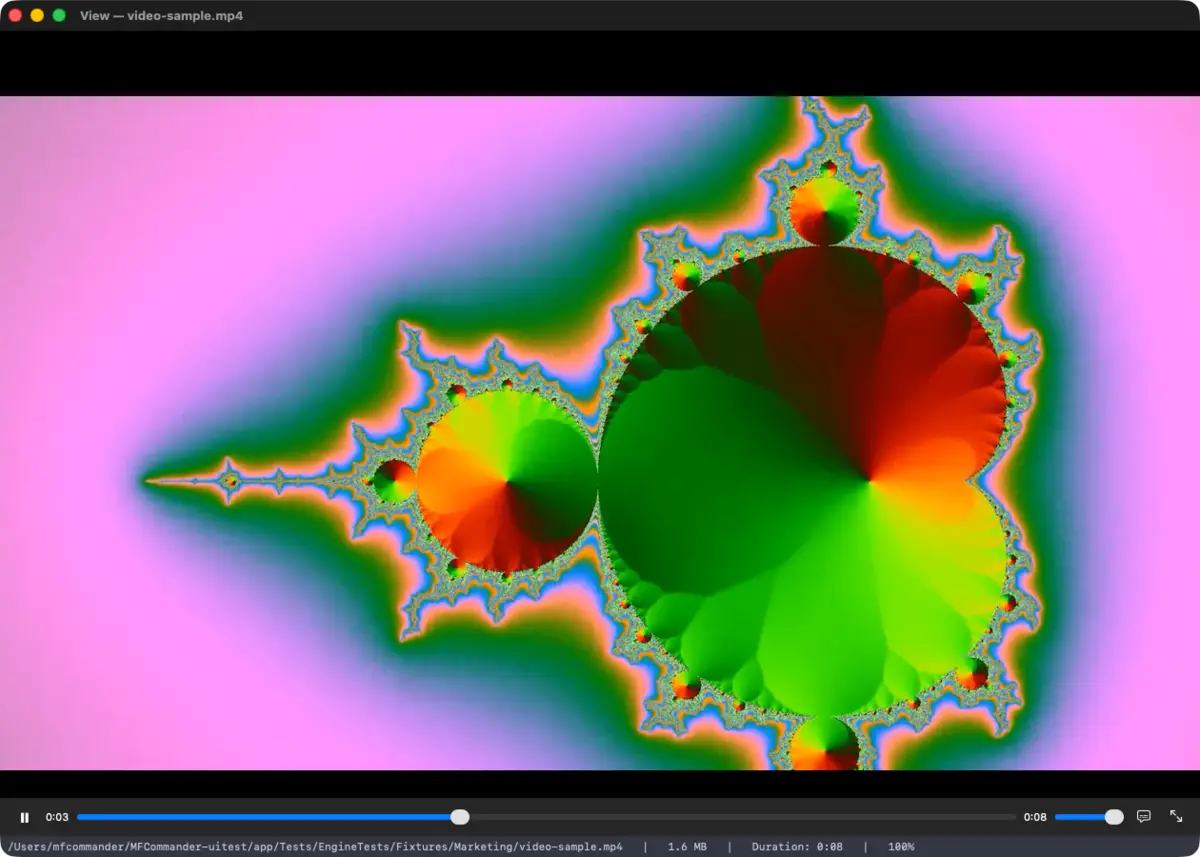
Preview documents, images, code and media.
Community includes all the viewers below, ready to open from either pane.
See supported file formats
Text and code
Plain text and logs, with syntax colors for Markdown, JSON, YAML, HTML, XML, CSS, Swift, C, C++, Objective-C, Python, JavaScript, TypeScript, Rust, Go, Java, shell, SQL, TOML, INI, Dockerfiles, and Makefiles. Anything else opens as plain text.
Images
PNG, JPEG, GIF, BMP, TIFF, HEIC, WebP, SVG, and ICNS, with zoom, dimensions, EXIF, and thumbnails in the pane.
Documents
PDF, Word, Excel, PowerPoint, Pages, Numbers, Keynote, RTF, EPUB, property lists, and configuration profiles.
Audio and video
MP4, MOV, M4V, MKV, WebM, AVI, WMV, FLV, MP3, M4A, AAC, WAV, AIFF, CAF, and FLAC, with playback and seeking.
Archives
Walk into ZIP, TAR, GZip, BZip2, XZ, 7z, RAR, CPIO, JAR, and WAR like folders. Create ZIP, tar.gz, or 7z. The rest open read-only.
Large-file viewing
Open and search large files.
In a recorded test, a 1.09 GB single-line JSON file used 33.3 MB of peak memory. A 256 MB log used 29.3 MB. Results depend on the file and workload.
Read text and hex without loading the whole file into memory. Search the complete file, jump to a line or follow a growing log.
Search the whole file
Find scans the complete file and reports the match count.
Jump to any line
Go to Line seeks straight there, however far into the file it sits.
Follow a live log
Keep a file pinned to its end while something is still writing to it.
Highlighting and hex
Syntax colors for the lines on screen, and a hex mode for everything that is not text.
Find large files and duplicate copies.
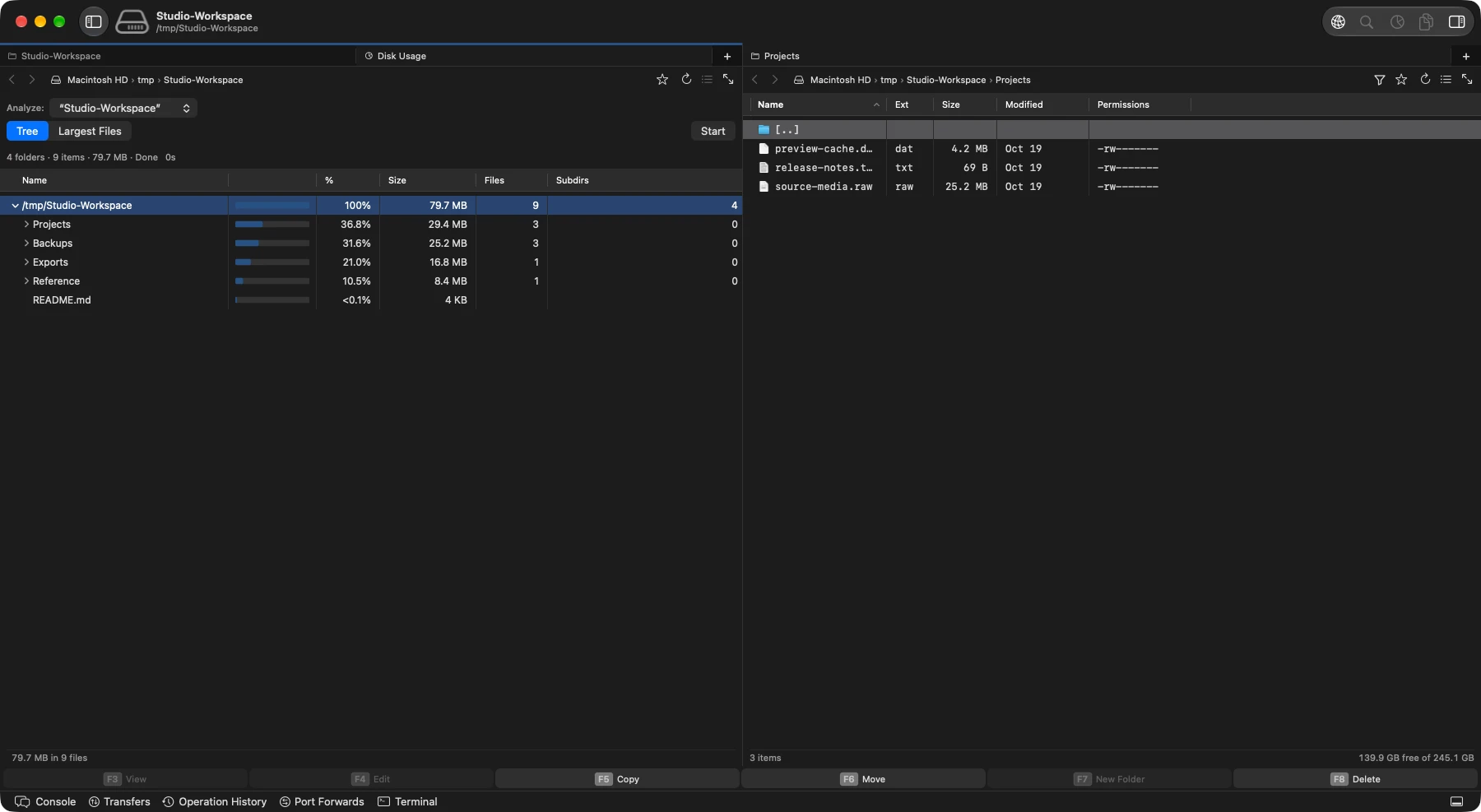
Disk Space Analysis
See which folders account for the space on your Mac. Disk Usage measures allocated bytes on disk, with a folder tree and a Largest Files view. Reveal a result in the other pane to inspect it without losing your place in the scan.
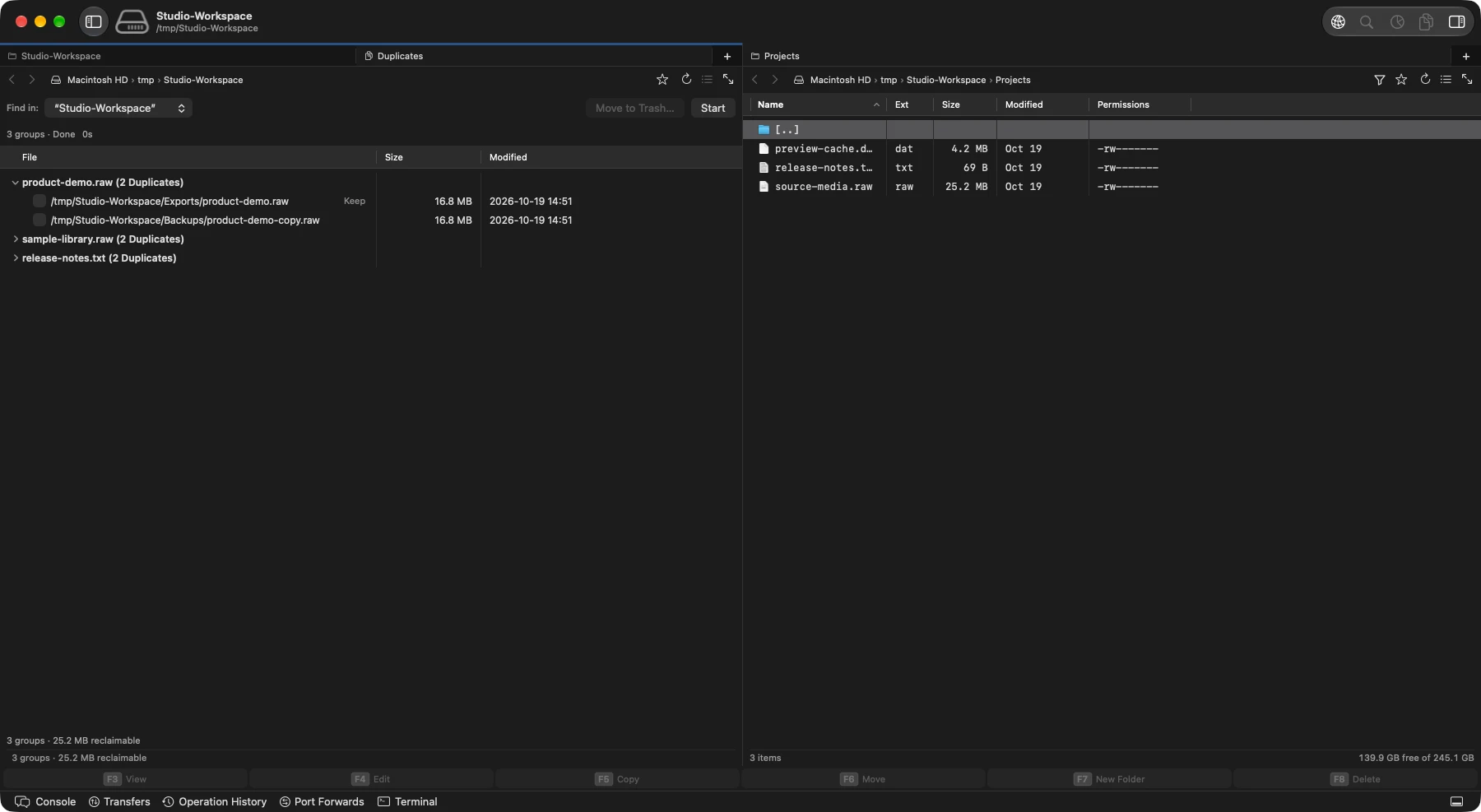
Duplicate Files
Find matching file contents across a local folder, even when the names differ. Expand a group to compare paths, sizes and dates before choosing copies to remove. Deletion keeps at least one copy and checks that the selected files still match.
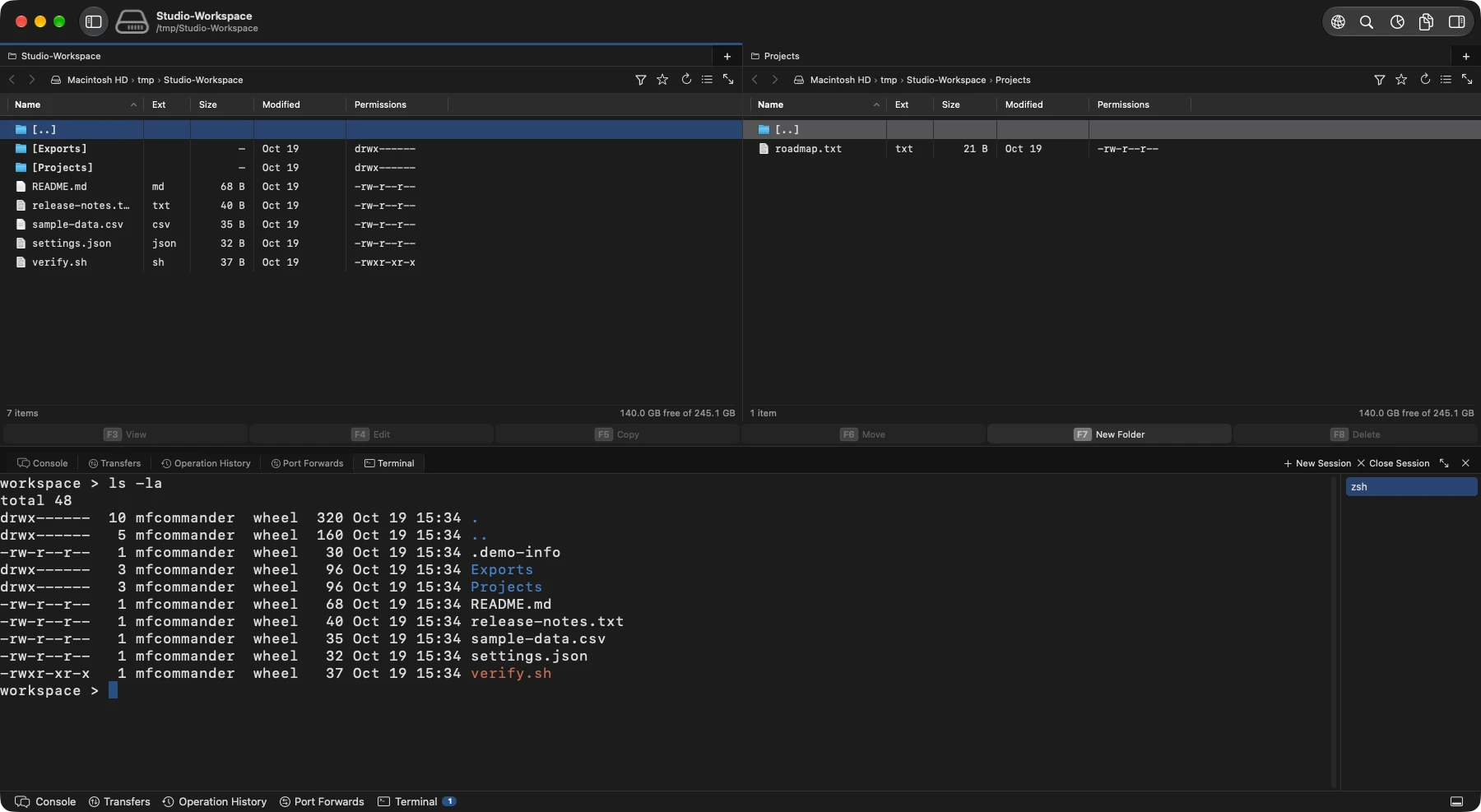
Keep a shell beside your files.
Start a local Terminal session in the active local folder. Run commands while the two panes stay in view.
Each session keeps its own working directory as you browse elsewhere, and stays open when you switch or close file tabs. Open another session when you need another shell.
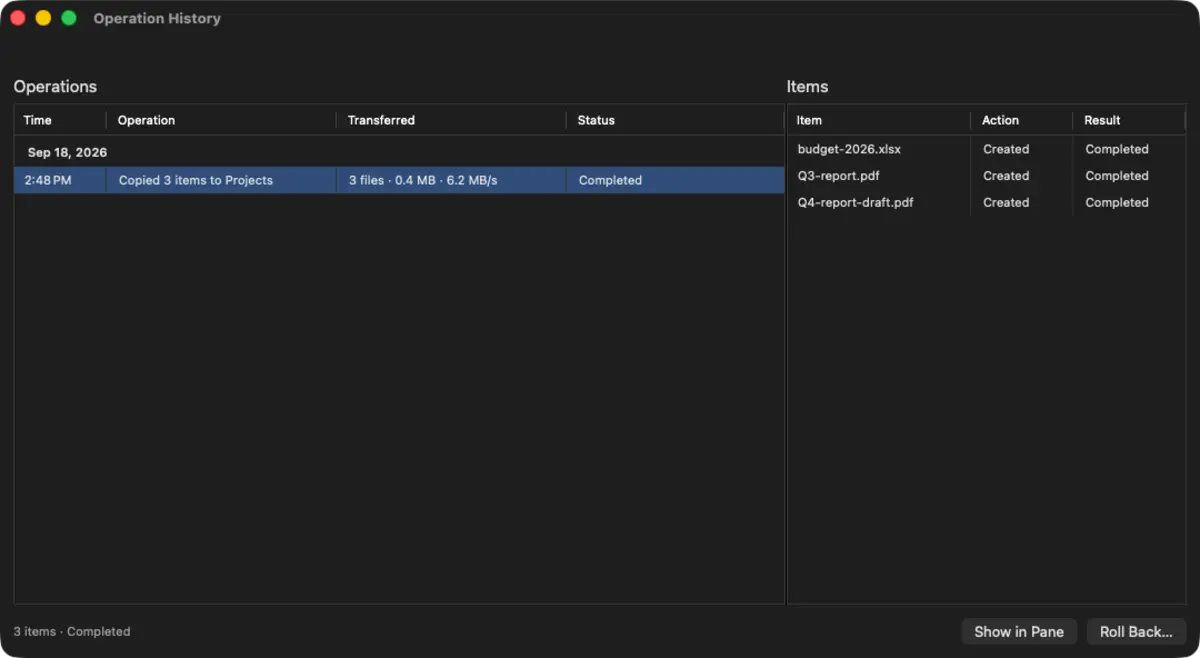
Review file operations and roll back eligible changes.
Window ▸ Operation History records copy, move, rename, duplicate, delete, and Move to Trash operations as they run. Open an entry to see its outcome and review what can be rolled back.
Undo the last one
Edit ▸ Undo reverses the most recent reversible operation. Outside a text field, that is ⌘Z.
Roll back an older one
Select an eligible entry in Operation History and choose Roll Back to review its reversal.
It previews before it acts
Review Rollback lists what will be restored and what will be skipped. Each item is checked again when rollback runs. Items changed since the original operation are skipped.
Choose how long to keep the history
Thirty days by default, or this session only, 7 days, or 90. Clear History removes the saved record. The history stays on your Mac.
All of this is free, forever.
Community includes the local file workspace and all these tools, with no time limit.
Pro adds the remote connections, so the same viewer reaches SMB shares, SFTP servers, S3 buckets, OneDrive, and Dropbox.