MFCommander Infra · Kubernetes
Copy files from a Kubernetes PVC to your Mac
Open a persistent volume, copy a log to a local folder and check the result.
A log or export is sitting on a Kubernetes volume, and you need a local copy to inspect. MFCommander can open the PVC as a file pane, with a folder on your Mac in the other pane.
This walkthrough follows one file, incident-042.log, from a claim named app-data to a local folder. Use the claim and file names from your own namespace. The sequence is the same: open the volume, choose the destination, review the copy and check the result.
Choose the claim
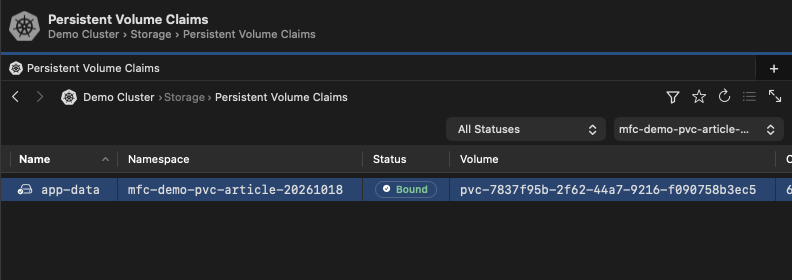
Select the intended Kubernetes connection and namespace. Under Storage, open Persistent Volume Claims and find app-data. Check the claim name and state before you open it, especially when several namespaces use the same naming convention.
You are still looking at Kubernetes resources at this point. Wait until you have opened the volume and can see its files before using the file-copy action. F5 on a resource list exports resource YAML, which is a different operation.
Open the volume as a file pane
Double-click app-data to open its contents in a file pane. Wait for the listing to finish, then read the breadcrumb and file names. The path should still identify the Kubernetes volume you chose.
Find incident-042.log in the listing. A volume can contain several directories with similar log names, so navigate to the intended file before selecting it. The pane now shows files and folders rather than PVC objects.

Choose a local destination
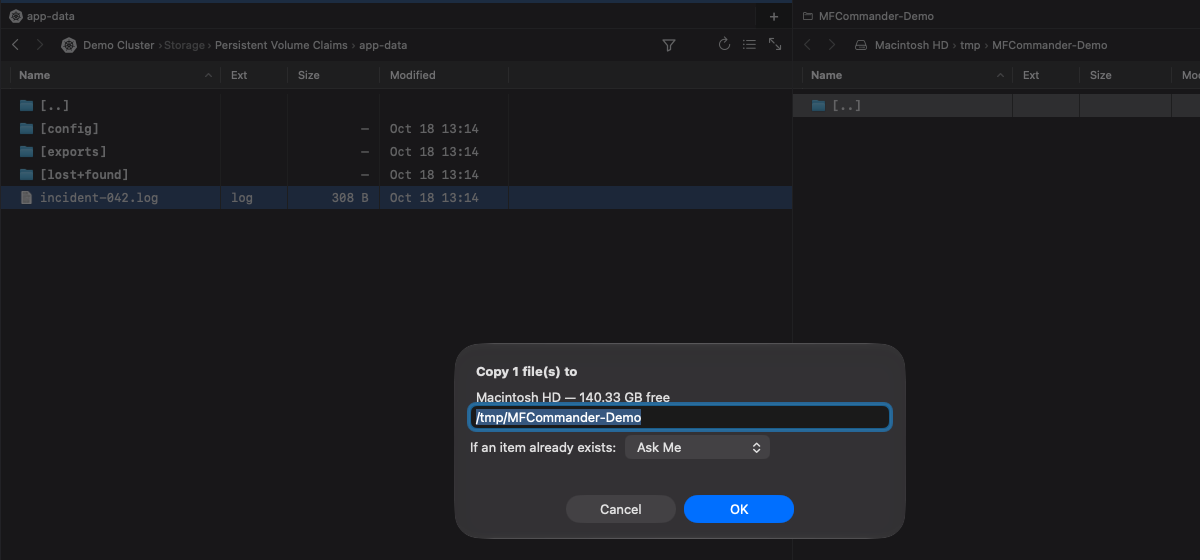
Open the local destination folder in the other pane. The two-pane layout lets you keep the source volume and destination folder visible together while you check the operation.
Return to the PVC pane and select incident-042.log. Keep that pane active. Before pressing Copy, check which pane contains the selected source and which folder is open on the other side. This example copies one file, so there is no need to select its neighboring directories.

Review the copy
Press F5 to open the Copy confirmation. Read the destination folder in the sheet and check the selected file behind it. Confirm only when both describe the operation you intended.
If the destination already contains a file with the same name, review the conflict before choosing how to handle it. Do not assume that two files with the same name contain the same log. Keep the existing copy when you need it for comparison, or choose another destination.
Check the local result
Wait for the copy operation to finish, then find incident-042.log in the local pane. Select the local file and check that you are looking at the destination folder. You can press F3 to inspect its contents.
For an export you plan to keep, check the expected file size and content. If the source provides a checksum, compare it with the local file as well. This operation copies the file, so the original remains on the PVC.

The local copy is now available to your Mac’s tools. You can read it, compare it with another export or include the relevant part in an investigation without continuing to browse the volume.
Keep the distinction between the resource browser and the file pane in mind. First open the PVC’s contents, then use the ordinary file-copy workflow.