MFCommander Infra · Kubernetes
Inspect a Kubernetes Deployment on your Mac
Follow one Deployment through its Pods, owner links, selecting Service and referenced ConfigMap.
You have a Deployment name. Before changing anything, you want to see its Pods, find the Service that selects them, and check which configuration they use.
In MFCommander, you can start with that Deployment and follow the connections from its detail view. This walkthrough stays read-only and follows shop-web from its Overview to the ConfigMap it uses.
Open the Deployment
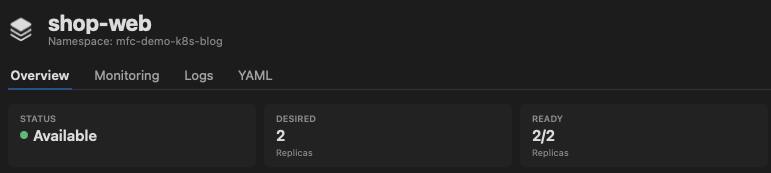
Open Deployments in the Kubernetes resource browser and select shop-web. Start in Overview, where you can check the object name, namespace and current Deployment status.
Read the workload summary before opening another object. It gives you a starting point for the inspection and a place to return to as you move through related resources.
The rest of the walkthrough follows this one Deployment. Keep shop-web selected while you move down to its Pods table.
Compare the Pods
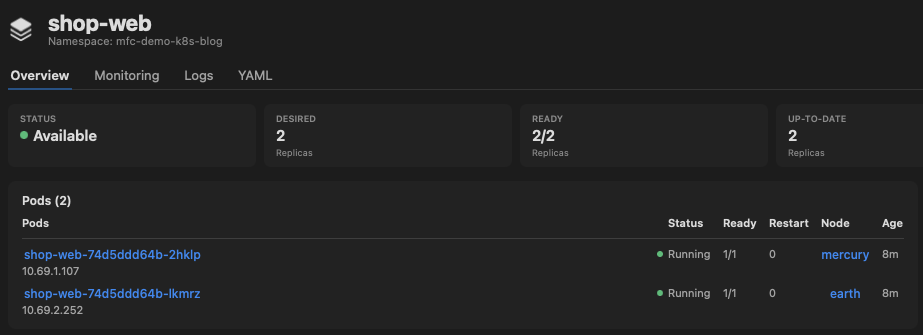
The Deployment Overview has a dedicated Pods table. Use it to compare the member Pods and their reported status, readiness and restarts.
Look across the rows before opening one. Is readiness consistent? Does one Pod have a different restart count? If a row stands out, start there. If the rows look alike, choose one to inspect its details and follow its ownership chain.
Open the Pod from this table. You stay with the workload you already selected, and the next detail view gives you the Pod-specific information.
Follow the Pod owner
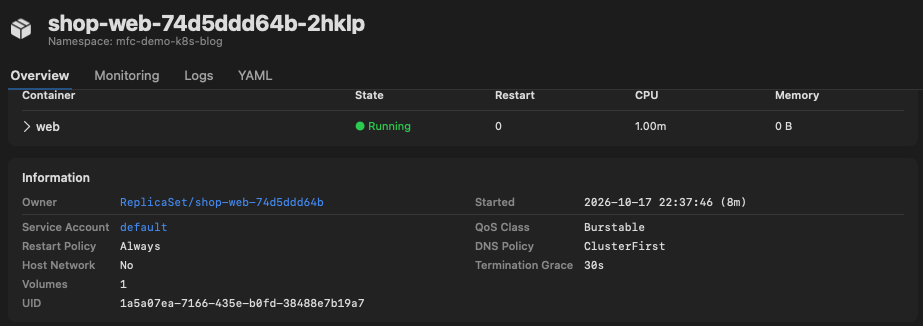
In the Pod Overview, find its Owner link. A Deployment-managed Pod normally belongs to a ReplicaSet, which belongs to the Deployment. Open the ReplicaSet, then follow its owner link back to shop-web.
This is useful when the generated Pod and ReplicaSet names have different suffixes. You can follow the actual ownership chain instead of matching names across separate lists.
Pause on the ReplicaSet if that is the object you need to inspect. Otherwise, continue back to the Deployment.
Find the selecting Service
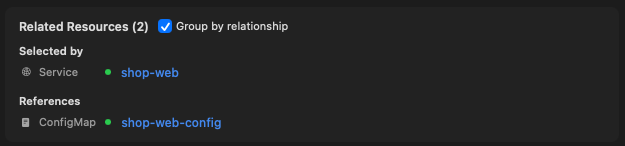
On the Deployment, look in Related Resources for a Service selecting its member Pods. In this example, the Service is also named shop-web. The connection comes from its selector, so the names do not have to match.
Enable Group by relationship in the Related Resources card header to show the relationship labels. The option is off by default. With it enabled, a matching Service appears under Selected by.
Open the Service from that row. You have moved from the workload to the network resource selecting its Pods without starting another search through the namespace.
Open the referenced configuration
Return to the Deployment and look under References for shop-web-config. In this example, the Pod template references that ConfigMap. Open the link to inspect the configuration alongside the workload that uses it.
Check the ConfigMap name and namespace, then read the relevant content. The YAML tab is read-only by default, so you can inspect the object without entering edit mode.
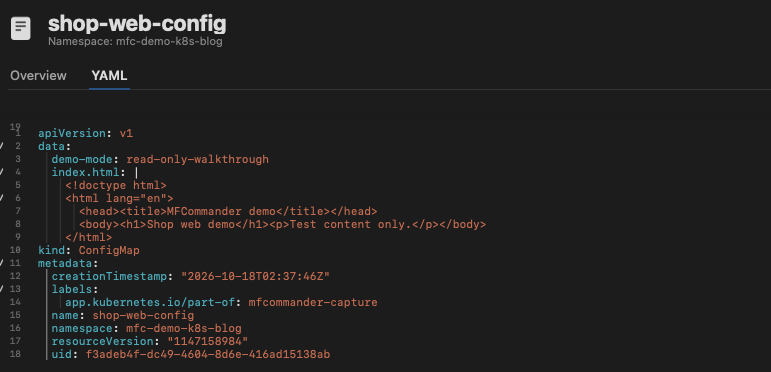
You have followed the Deployment to a member Pod, through its ReplicaSet owner, and into the selecting Service and referenced ConfigMap. Each object belongs to the same investigation. When you need to check a setting or inspect a Pod more closely, you know how it connects to the workload you started with.