MFCommander · File viewers
Open nearly any file in MFCommander
Documents, photos, video, audio, Markdown and code, all one F3 away.
MFCommander does more than move files. It gives you a document reader, an image viewer, a video player and an audio player in the same app, alongside rendered Markdown and syntax-highlighted code.
Select a file, press F3 and get straight to what is inside. Read a report, zoom into a photograph or watch a movie, then return to your files and keep going.
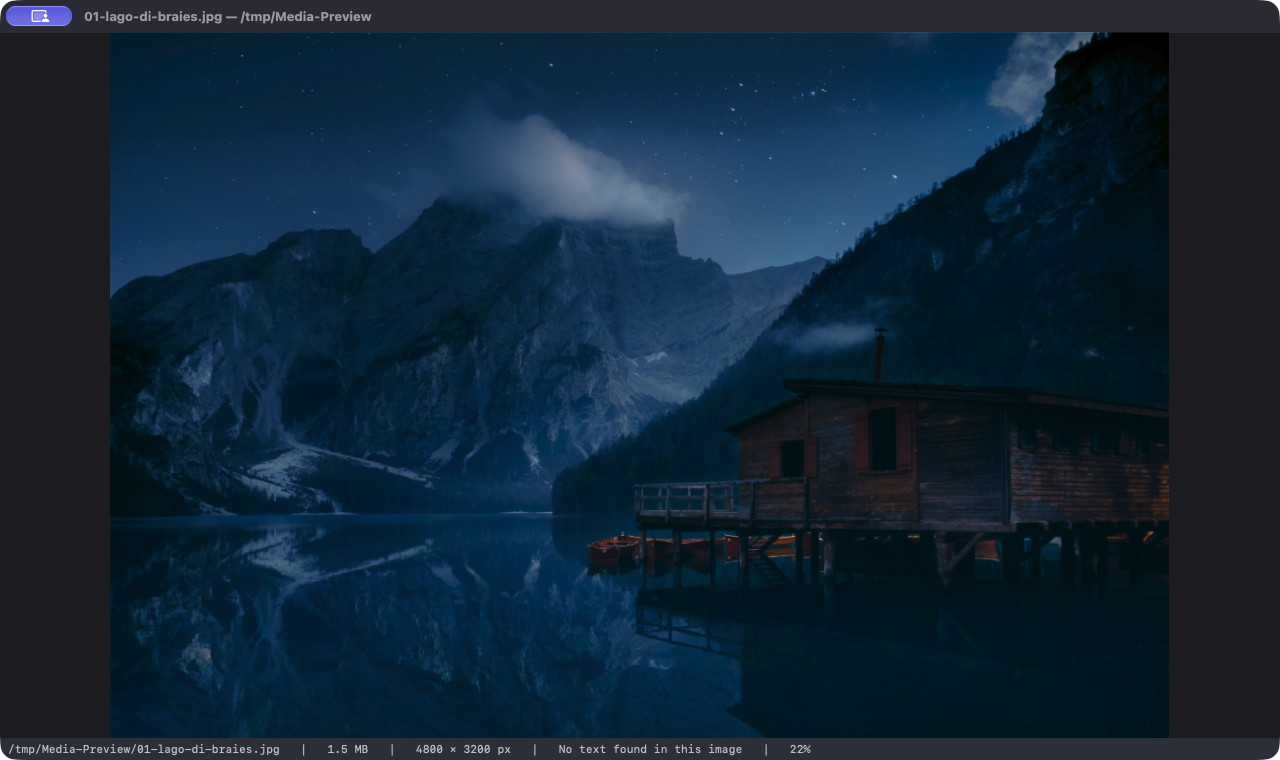
See your photos in detail
Open a landscape photo and take in the whole frame, then zoom in for a closer look. MFCommander keeps the image dimensions and zoom level close at hand.
JPEG, PNG, HEIC and WebP are among the supported image formats. Your file manager becomes a useful place to look through photos as well as organize them.
Watch movies and clips in place
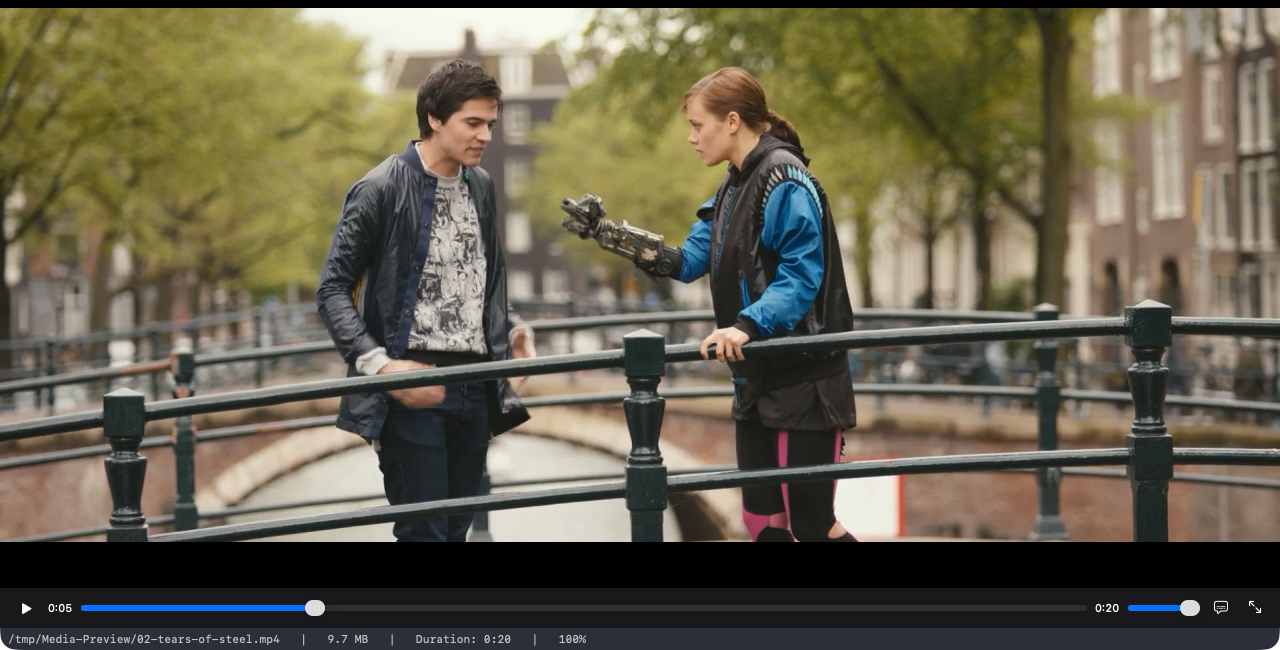
Press F3 on a video and watch it inside MFCommander. Playback controls, a timeline and volume are right there in the viewer.
Skip to the part you want, pause on a frame or watch the clip through. The example below is a scene from the open film Tears of Steel.
Your audio player too
Music, voice recordings and sound effects use the same media viewer. Play, pause, seek and adjust the volume while you browse your files.
The elapsed time and duration make it easy to find your place. Here, a WAV sample is playing through the native controls.

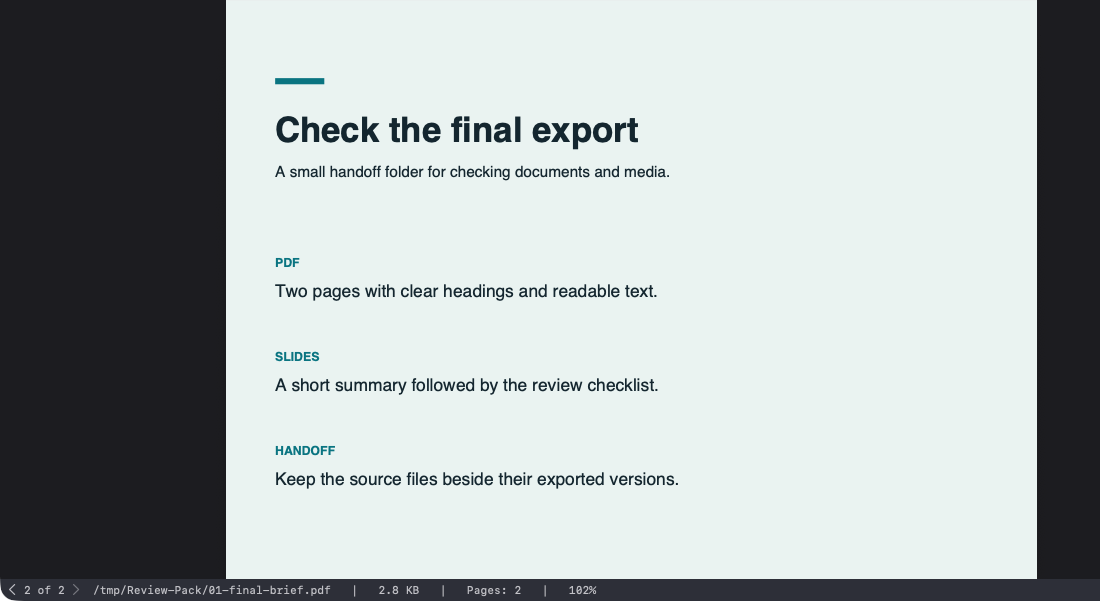
A PDF reader built in
Read reports, manuals and invoices without breaking your file-browsing flow. MFCommander renders PDF pages with page navigation and zoom controls, so you can move from a quick glance to a closer read.
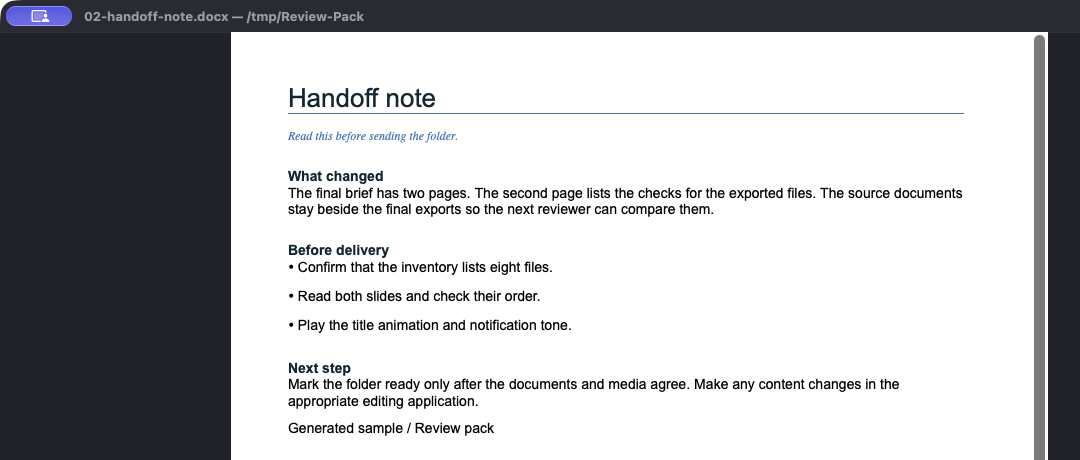
Read Word documents in place
Open a Word document and see its headings, paragraphs and layout inside MFCommander. It is a convenient way to read a DOCX or check which draft you have before opening an editor.
Check spreadsheets at a glance
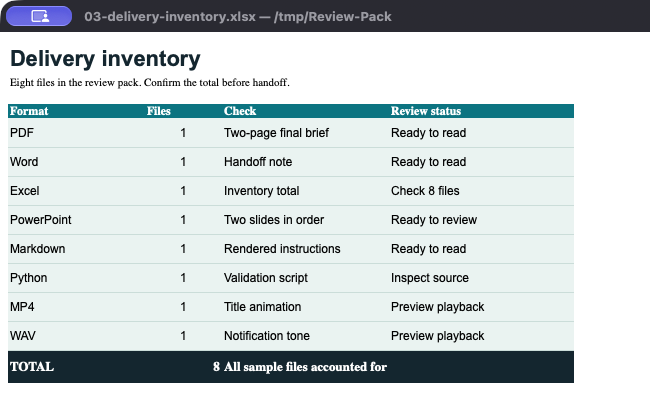
See the saved rows, columns and totals in an Excel workbook. When you need an answer from a spreadsheet, MFCommander can put the worksheet in front of you without changing it.
Preview a presentation
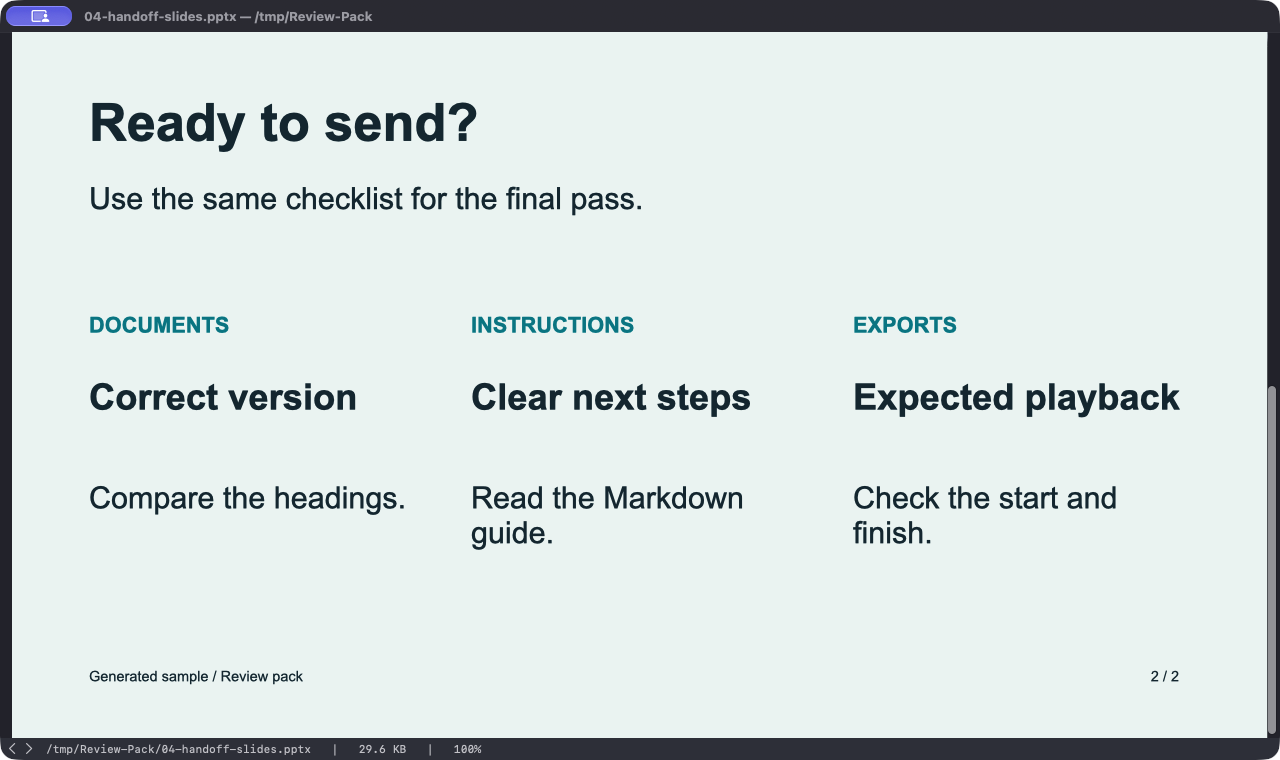
Step through PowerPoint slides to review the content and layout. You can check a deck from your file pane, then open a presentation app when it is time to edit or rehearse.
Read Markdown as a finished page
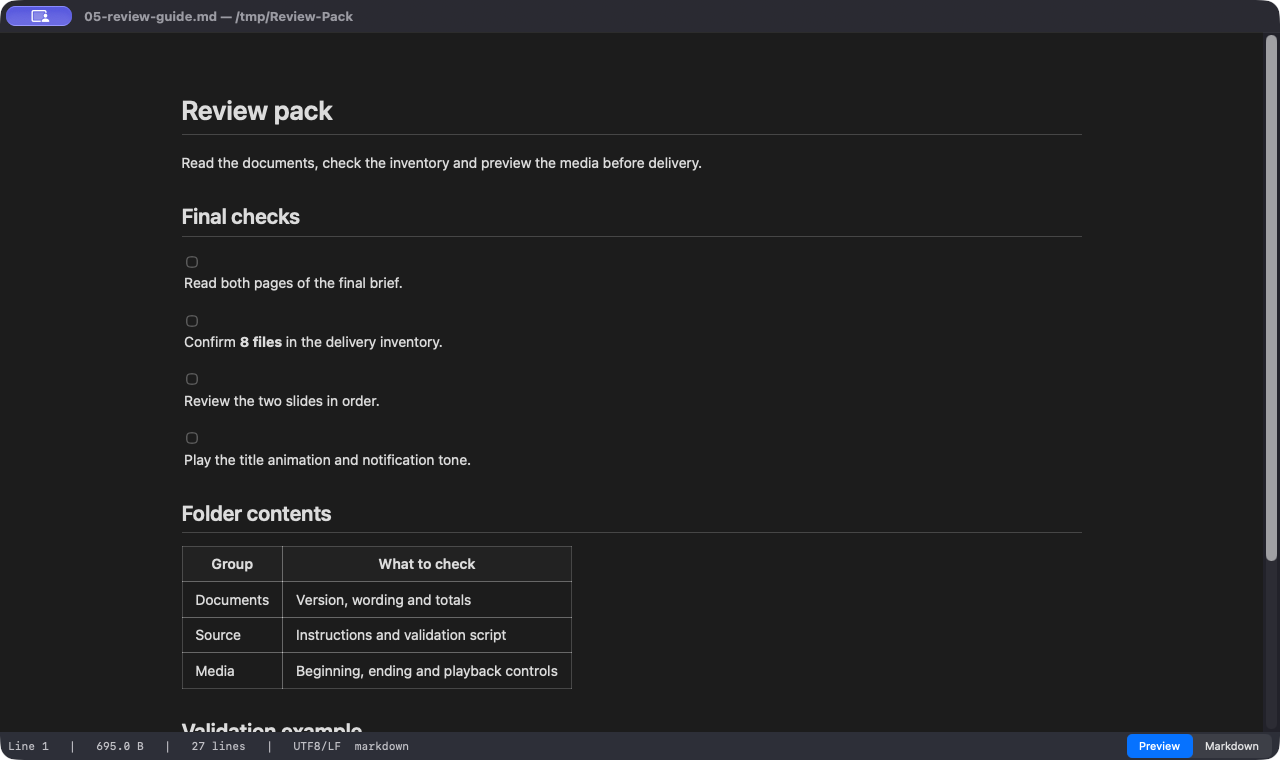
Headings, lists and tables are easier to scan in a rendered document. MFCommander’s Preview mode turns Markdown into a readable page.
Switch to Markdown to inspect the source, then return to Preview in the same window. It works well for README files, notes and project documentation.
Read code with syntax highlighting
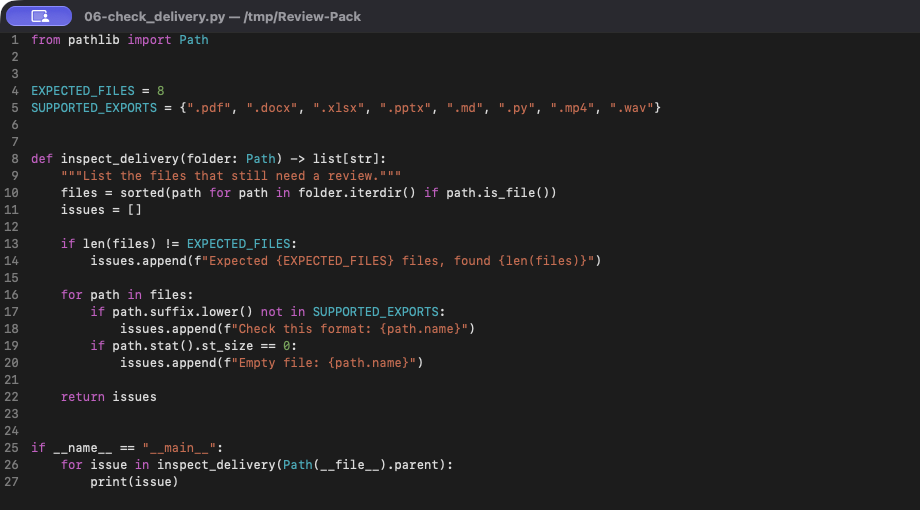
Open a script or source file and let syntax highlighting make the structure easier to follow. The Python example below separates strings, names and keywords with color.
F3 opens a viewer, so reading a script does not execute it. Inspect the code first and decide what to do next.
Keep MFCommander open while you browse, read and play. The next file uses the same shortcut, even when its format changes.
Office previews use macOS format support, and media playback depends on the container and codec. F3 is for viewing, with a separate editor for changes. When a rich preview is unavailable, text or hex can still help you inspect the file.