MFCommander · File management
Track file operations on Mac with MFCommander
Operation History in MFCommander helps you find copied files, inspect failed items and review eligible rollbacks on macOS.
Find copied files again and correct a move without relying on memory. MFCommander is a macOS file manager, and Operation History records only the file operations you perform inside the app. You can check what happened, jump to a destination, and review supported changes before rolling them back.
The record stays available as you move between folders and jobs, so you can return to a question about a transfer after the work has finished.
Find where your files went
Return to the right folder without retracing your browsing. Show in Panel takes you from a recorded copy straight to its destination, even after you have moved on to another job.
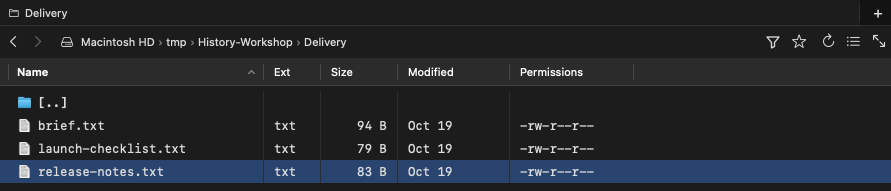
Here, Delivery reopens with the copied files ready to inspect. The history entry remains below the panels, so the record and the current files are easy to compare.
Expand an operation when you need to check which items were included and how they finished. You can investigate a missing file without repeating the whole transfer.
Find the item that failed
Focus on the file that needs attention. A transfer marked Completed with Issues can include both successful and failed items. History keeps each filename beside its recorded result.
In this example, the Status reports that the destination file could not be created. That gives you a specific item and location to investigate before trying again.
Show in History links a transfer to its record, so you can move from a problem in Transfers to the corresponding operation without hunting through the list.

Roll back an eligible move
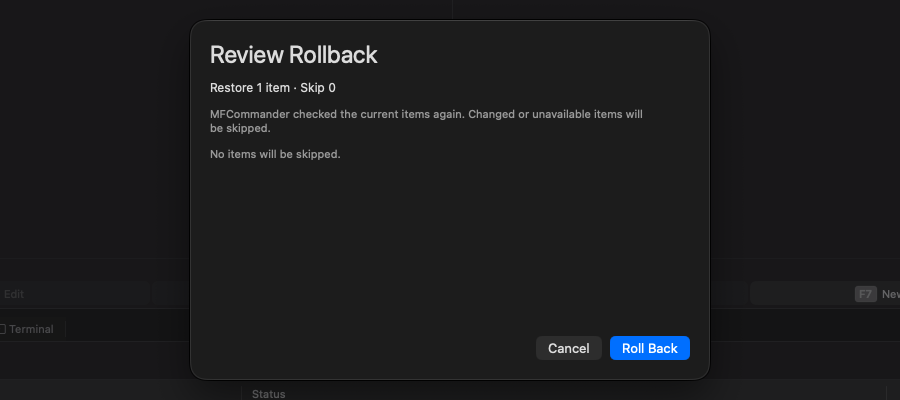
Correct an eligible move without manually finding both folders again. Roll Back previews the proposed changes before returning a file to its original location.
For this move, the preview offers Restore 1 item and Skip 0. Once confirmed, the file returns to Inbox and the original move is marked Rolled Back.
Changed or unavailable items may be skipped. History cannot recover permanently deleted files or overwritten versions.
Open Window > Operation History to explore your recent work, or watch the walkthrough below.